
Unlock Promotional Potential – Arcade Games with Built-In Advertising Features
5 Minute Read
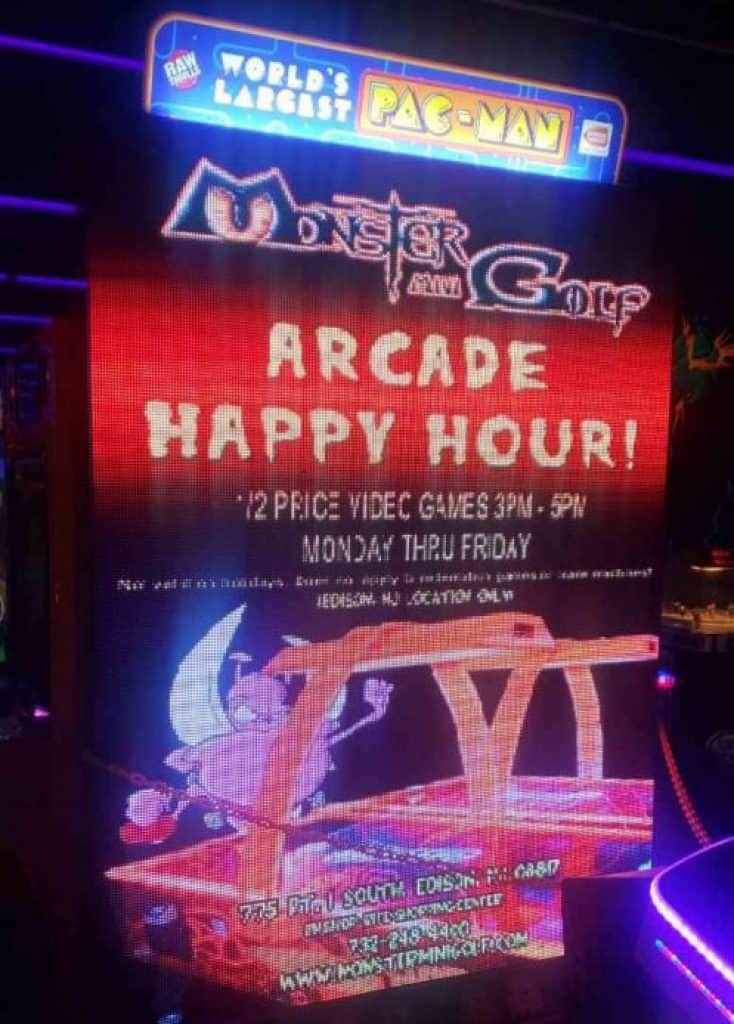
Arcade games help businesses in many ways. They can generate additional revenue, foster a sense of community, and provide guests with a fun escape. However, did you know that some games feature an advertising component? Some of these games might even be sitting in your arcade room.
Having this feature may seem minor, but it can significantly benefit your business. It allows you to easily promote events and specials. You won’t need to spend money on printing flyers or banners.
Promote Future Events
Theme events and tournaments based around the game you’re using to promote or get the message out about your upcoming trivia night.
Boost Your Social Media Followers
A unique way to promote your pages and entice guests to tag and share with friends & family.
Food & Drink Specials
Boost revenue in other areas by creating food and drink specials to encourage guests to stay longer in your establishment.
Games With Advertising Functionality and How to Set Them Up:
BIG BUCK HD WILD
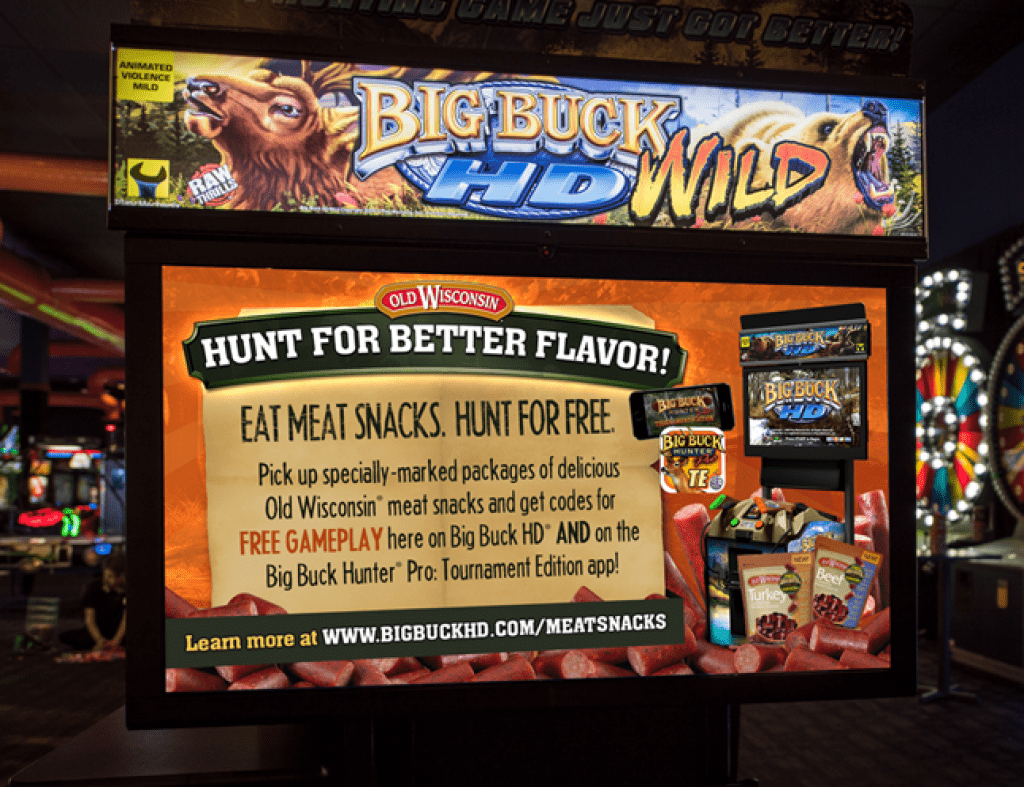
To unlock the advertising feature in Big Buck HD, you must first sign up for a CoinUp account. The CoinUp website allows you to create, edit, and update advertisements displayed on the Big Buck cabinet screen.
*Note: Once advertisement creation has started, do not use the browser back button if you need to return to a previous step. Use the Back button beneath the ad creation interface.
Step One
Details – Assign a name to the advertisement and specify its start and end dates.
Step Two
Graphics – Upload the graphic(s) to display. Ensure the image(s) file adheres to the specified format and size constraints.
Step Three
Game Machines – Select which game units will advertise. Only applicable game machines will be displayed in the list.
Step Four
Once you’ve set everything up, reviewed the advertisement settings, and are satisfied, click Submit Advertisement.
NEON BOWLING

Neon Bowling supports custom attract videos to enhance your setup. To use this feature, follow the guidelines below:
Once your video is ready:
⚠️ If the file is not named correctly or is incompatible, a temporary error message will appear. During video playback, all other game audio will be muted.
To remove the video, power down the game before unplugging the USB drive.
Reminder: The USB thumb drive must remain connected at all times to display the custom video.
SPACE INVADERS FRENZY &
WORLD’S LARGEST PAC-MAN
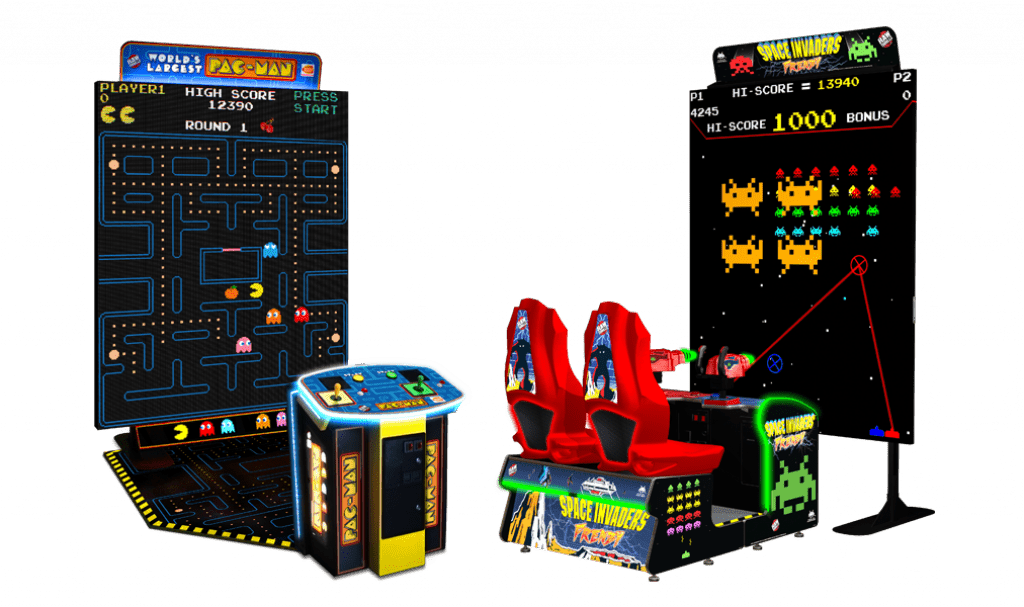
Space Invaders Frenzy and World’s Largest Pac-Man have an advertising feature that can be played during the game’s attract mode. To use this feature correctly, please take note of the following steps and recommendations:
Step One
On your personal computer or laptop, upload 1 to 3 images via a USB drive that you would eventually like to have displayed on your Space Invaders screen. Image files should be TGA, .PNG, or .JPG format type.
After you have selected, sized, and uploaded your images to your USB flash drive, you are now ready to upload them into Space Invaders Frenzy.
***Important*** Ensure your flash drive is inserted when the game is in attract mode. Do not insert the drive during game boot-up or when in the test menu.
Step Two
Open the coin door and locate the service bracket, which contains the test menu and service buttons. You will find a USB slot on this bracket to insert your flash drive.
Once your USB flash drive is inserted into the service control panel’s USB slot, you can press the TEST button to access the main menu.
Step Three
Select ADVERTISING from the main menu to access the upload feature. You can select an ad slot for your image from this menu.
After you are in the AD SLOT MENU, you can select LOAD IMAGE, which generates a list of the file names of the image files that are on your USB drive. Navigate to the file name you would like to upload and select it.
Step Four
When you select the image you would like to upload, you will be presented with a preview of the image, which you can accept or decline. If you accept the image, you will be taken back to “AD SLOT MENU,” allowing you to load a different image, adjust the ad brightness, preview the image again, clear your image or exit the menu.
PAC-MAN BATTLE ROYALE CHOMPIONSHIP
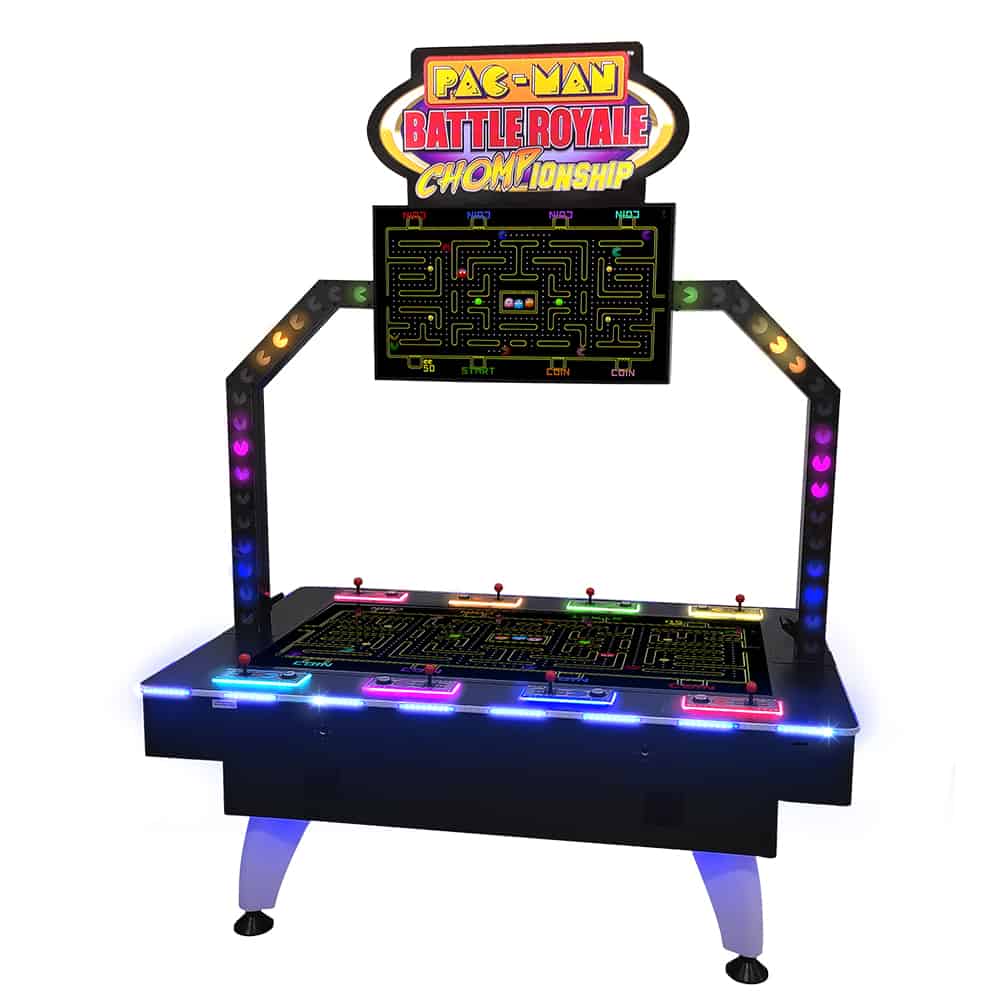
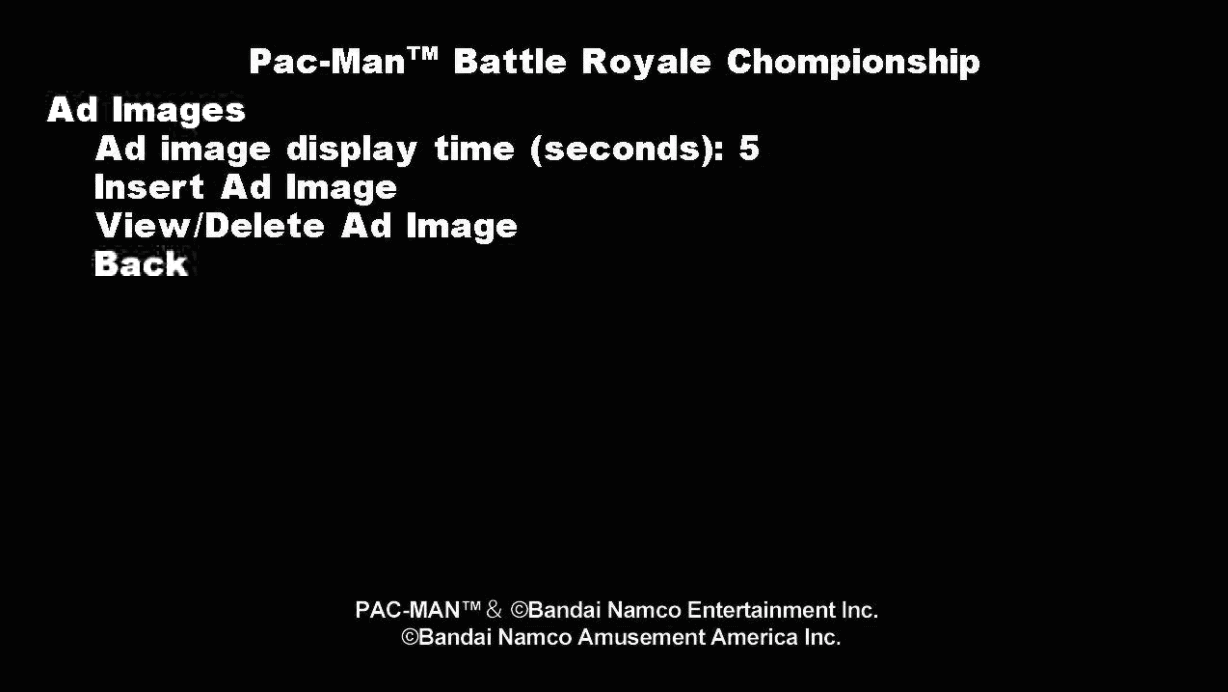
Namco’s Pac-Man Battle Royale Chompionship offers an advertising feature on the Deluxe cabinet. Follow the steps below to start advertising on your Deluxe Chompionship machine.
Images should be RGB color model and no bigger than 1280 x 720 pixels. Extra space will be black if the aspect ratio of the loaded image isn’t the same as 1280 x 720. The files must be JPEGs and the file name must end in “.jpg”.
Step One
Load the images onto a USB flash drive.
Step Two
Plug the flash drive into the game.
Step Three
Go to the Test Menu –> Ad Images –> Insert Ad Image
Step Four
Choose the image(s) that you want to install. While highlighted, the image will appear on the right half of the screen.
JET PONG
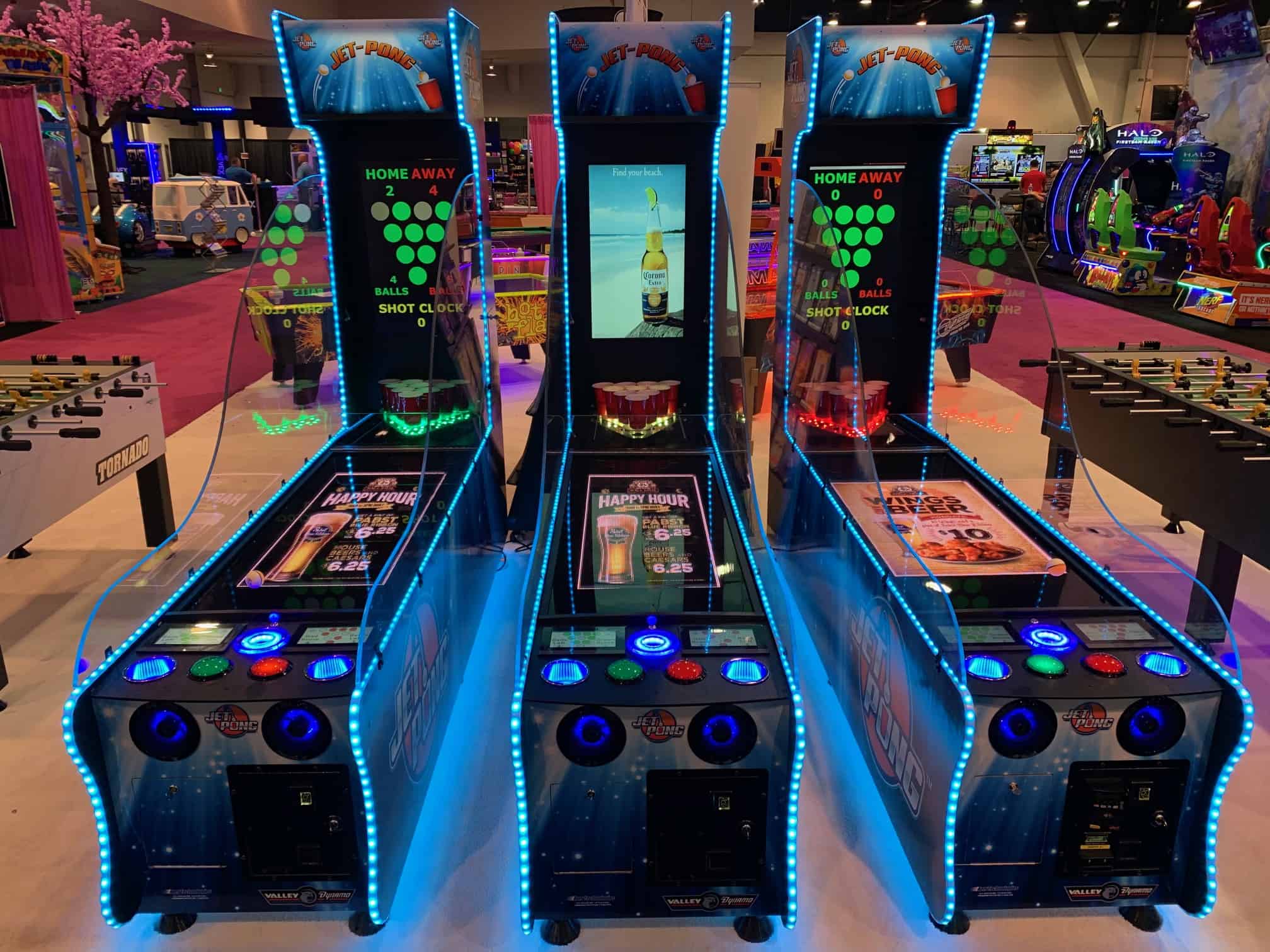
Jet-Pong has photo ads that can be displayed on the rear Scoreboard. 8 Ads can be read from a USB stick, which gets inserted into the rear grey module called an mTV-100.
Jet-Pong features videos and photo advertisements that can also be displayed on the Table Lid using the D15/D16 LED Controller microprocessor located underneath the table lid. The D15/D16 comes preloaded with these files. If you want to customize your ads, you can simply load and play them from a USB stick. Replace any video or photo files you like using the same names so that they will play in the same order.
SKEE-BALL GLOW
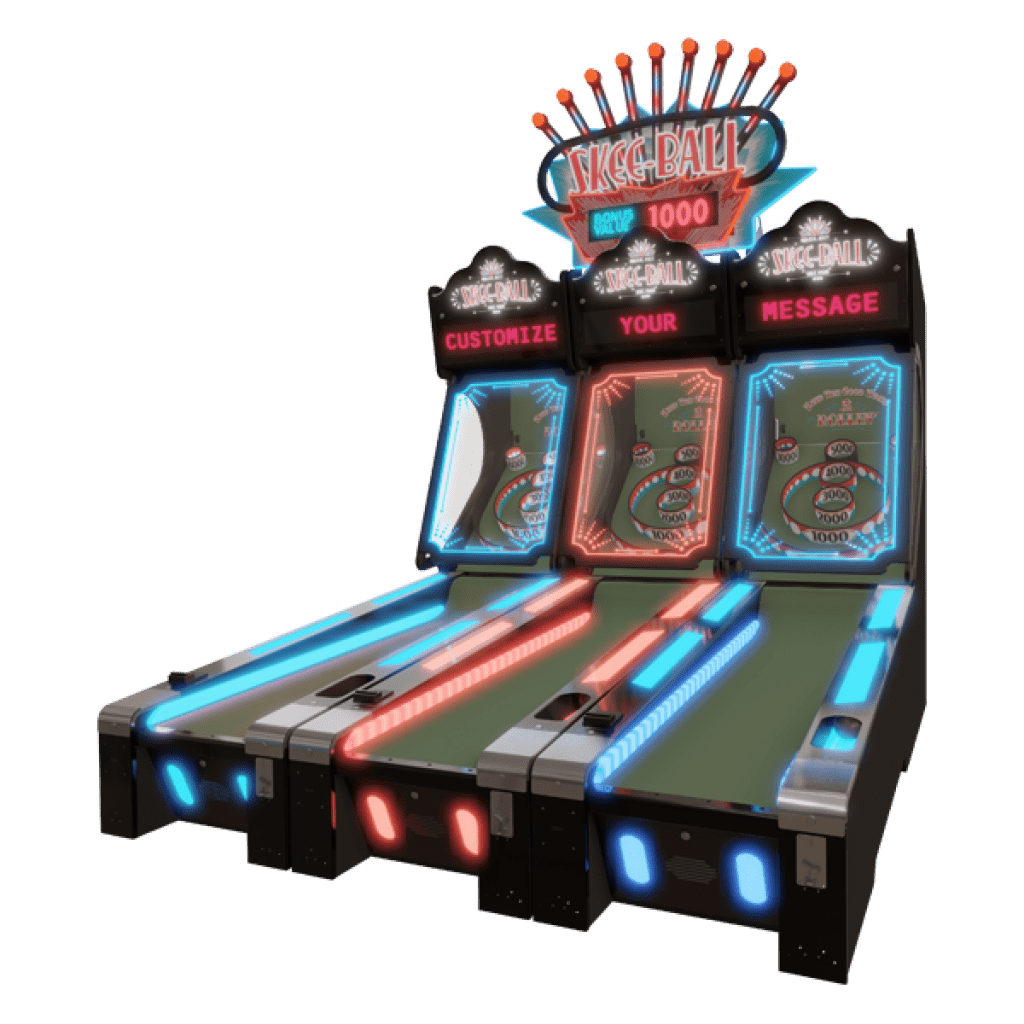
The Skee-Ball marquee is equipped with Bluetooth connectivity, compatible with the Bay Tek GO app, available for download on iOS and Android devices. This feature allows locations to program the scrolling marquees of each game to customized messages, such as birthday announcements and daily specials.
The N17 menu does not effectively change Bluetooth settings, but it displays scrolling messages and the status of the app settings if the device has been used previously.
Step One
Locate the Bay TekGOapp on your device.
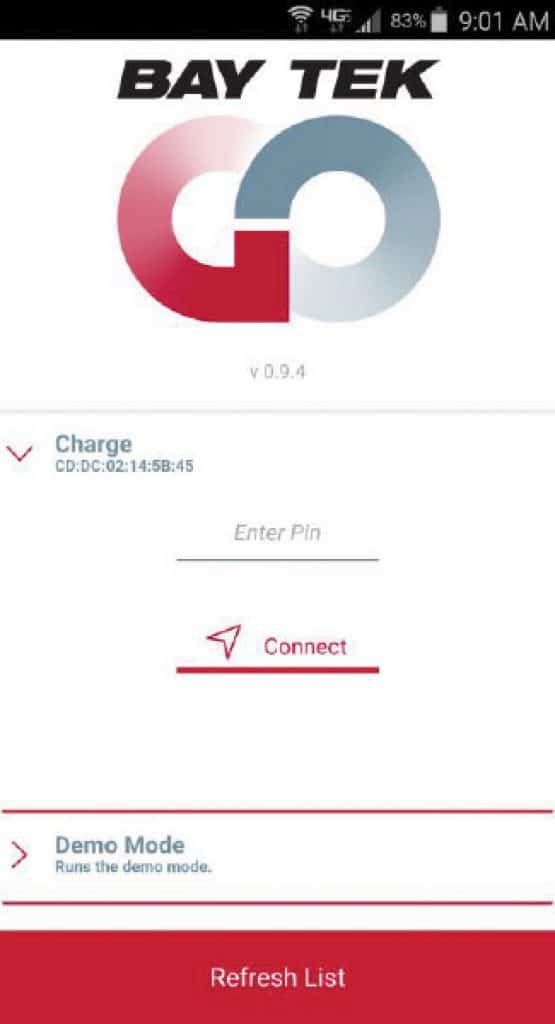
Step Two
Press the Refresh List button to find your game, then select the desired machine, the entire PIN #, and press Connect.
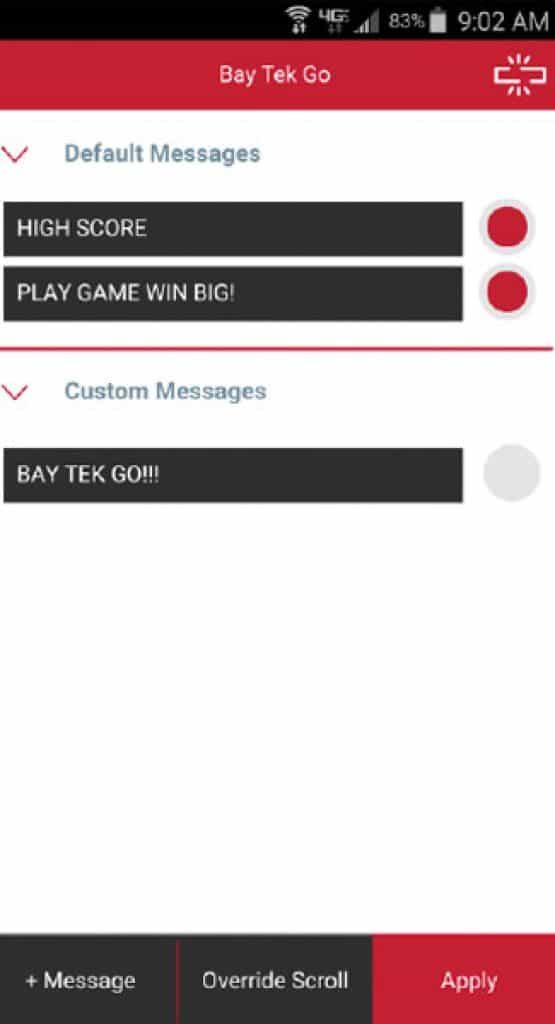
Step Three
Expand the menus to view current message settings. Turn messages on or off by hitting the red buttons. You can add up to 5 custom messages by clicking + message at the bottom of the screen.
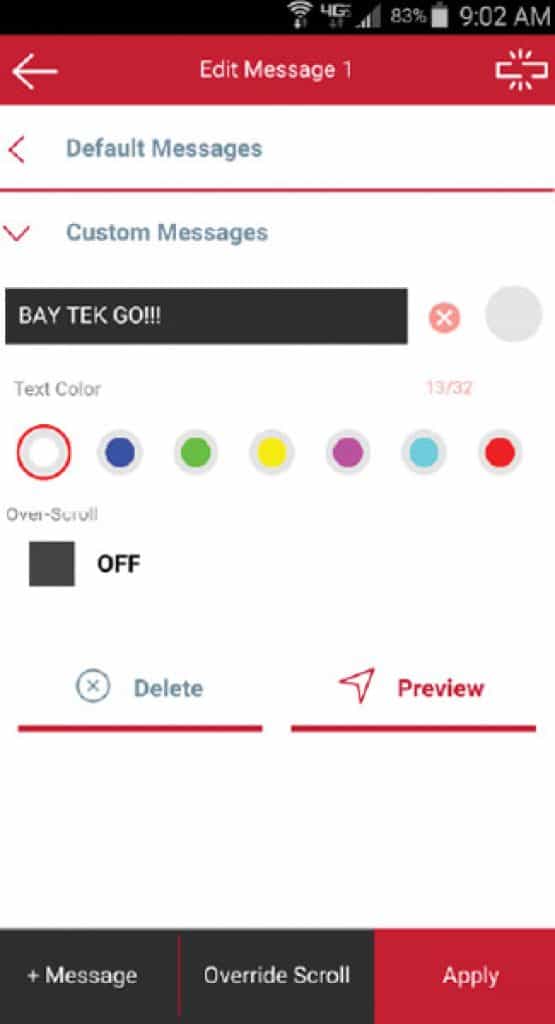
Step Four
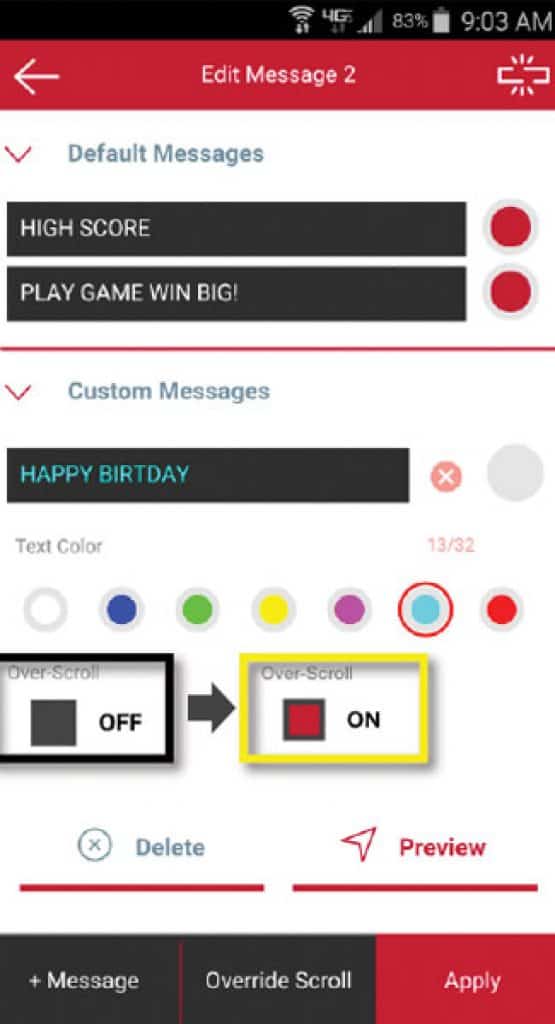
Edit messages and select display color. Hit Preview to view the message on the game’s display. Press Apply to save the message or Delete to remove it.
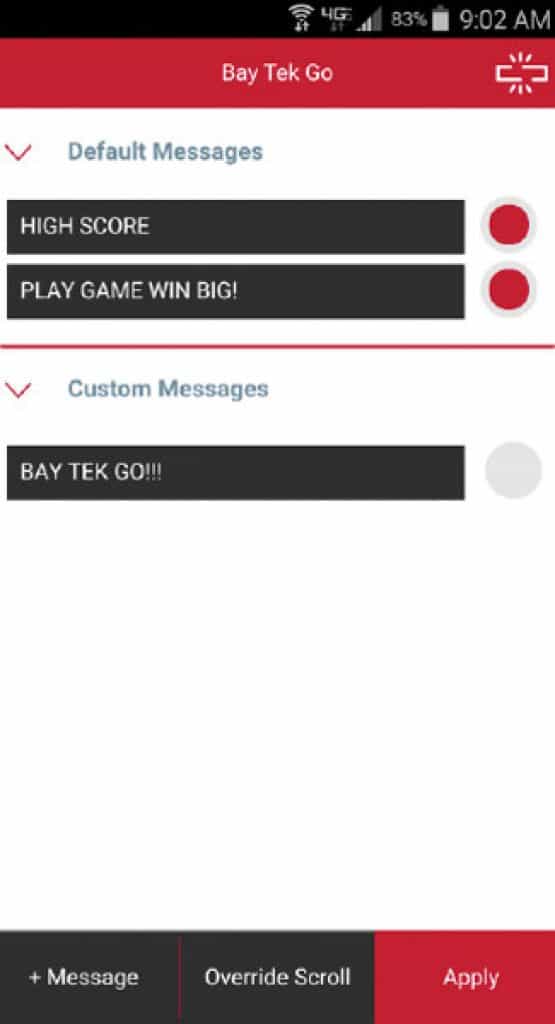
Step Five
Enter and enable all desired messages.
Step Six
Messages can be sent to override the game display at set intervals. Over-Scroll must be selected on each message you wish to override the display (including during gameplay to ensure your messages are seen, even in a busy game room).
Step Seven
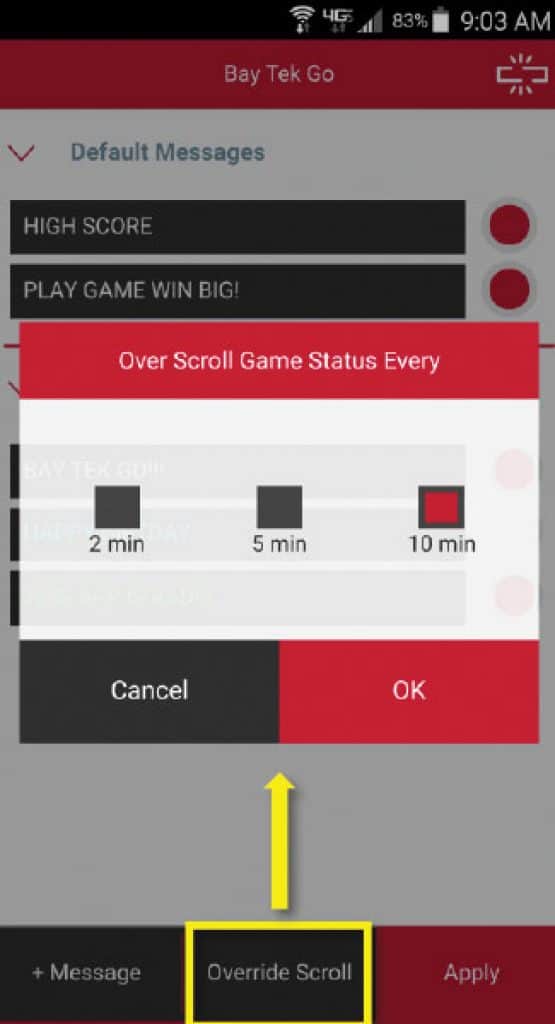
Press the Override Scroll button to open the Over Scroll menu. Select how often you want the messages to over-scroll on the displays. Only the messages in which Over-Scroll was selected will be enabled.
Step Eight
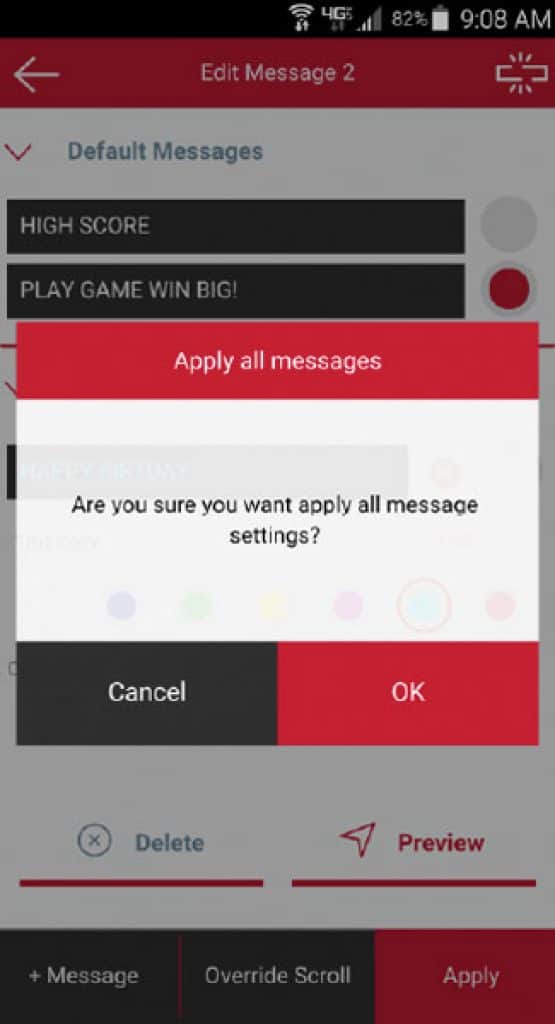
Hit the red Apply button to enable all custom messages. Be sure to hit OK in the confirmation menu.
ADVERTISING ON
AMI Jukeboxes
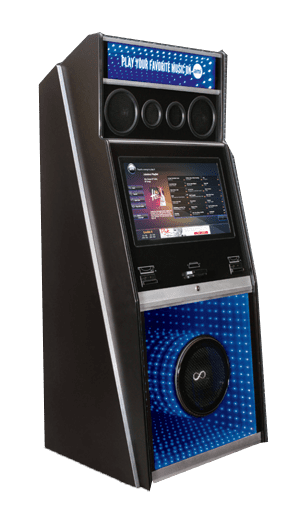
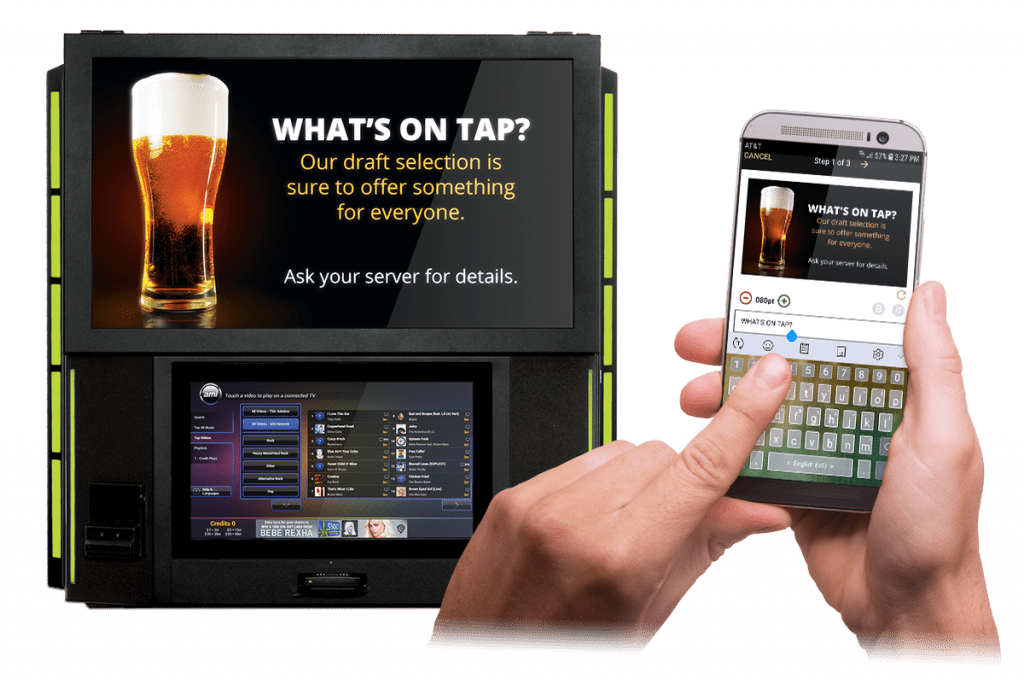
If you have an AMI Jukebox, it is compatible with the AMI Ad Manager Tool, a promotional tool that transforms your AMI products into robust digital signage systems. You can create, edit, and schedule ads from the palm of your hand using AMI’s Co-Pilot app, or from a computer.
If you’re not tech-savvy, the Manager Tool features over a thousand pre-made templates to choose from, along with an easy-to-use interface, allowing business owners or designated staff to build ads in just minutes.
With over a thousand pre-made templates to choose from and an easy-to-use interface, it takes just minutes for installers, business owners, or designated staff to build ads.
AMI AD MANAGER TOOL
Step One
Begin by choosing an ad template.
Step Two
Personalize it with your own text.
Step Three
Set its date range and hours of display.
Step Four
Publish your ad!
Sign up for our newsletter to be the first to hear about new releases, product promotions, updates, and more!

James Liess leads marketing and communications for Betson Enterprises, focusing on working with manufacturing partners to increase awareness of their products and services. He has over 15 years of experience working with global brands in the sports and entertainment industries.
